Visual regression testing, mockup comparison and responsive testing in Chrome

UI Testing Inspector is a free Chrome extension for visual regression testing and visual QA of websites. Compare a page with a saved baseline, check it against a design mockup or run a responsive audit at common breakpoints and custom widths. Carousels, ads and timers are masked, so dynamic content does not cause false positives, and everything stays on your computer.

Add to Chrome, it's free How it works
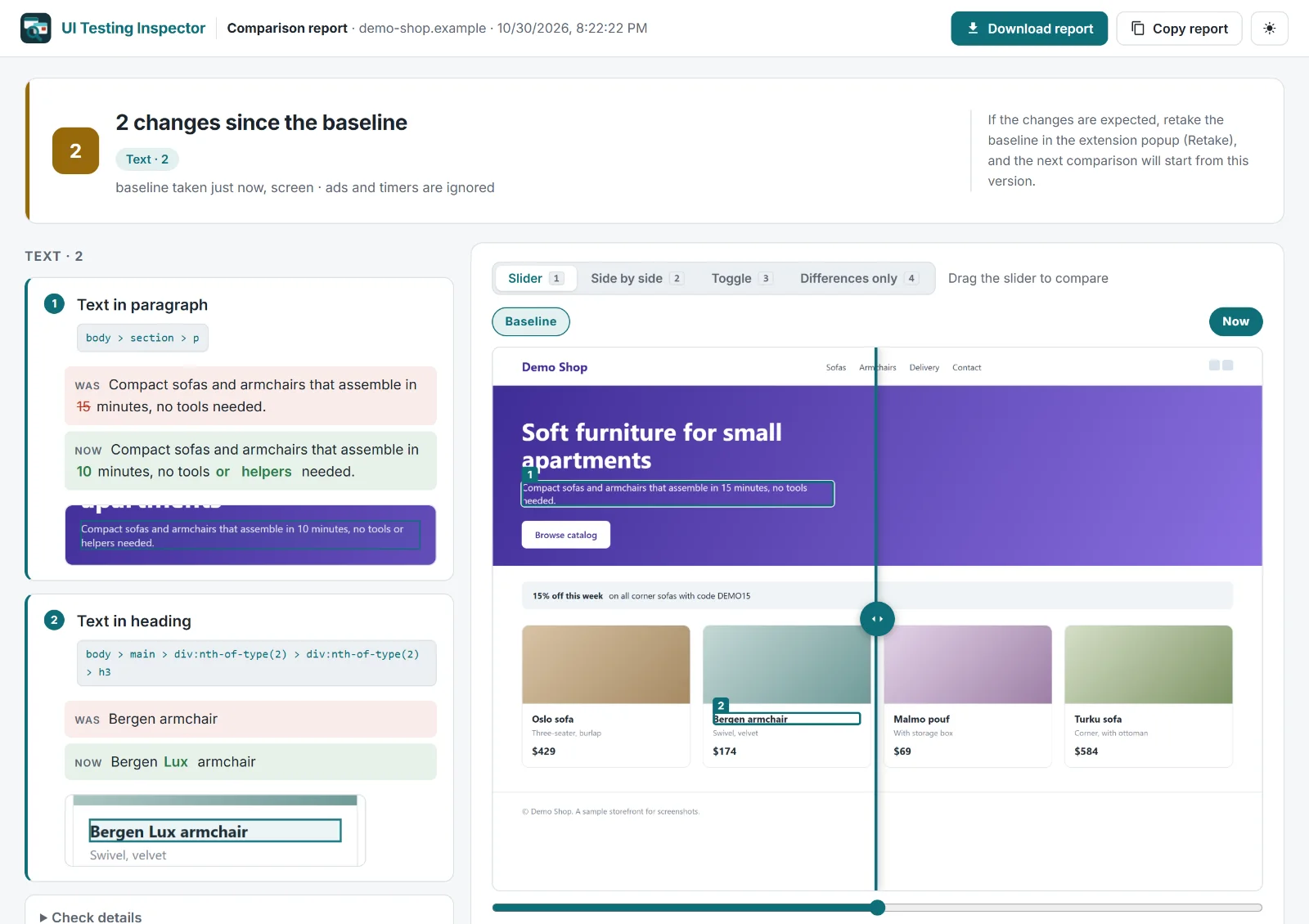
UI Testing Inspector comparison report with two text changes highlighted on the page screenshot

Sound familiar?

If any of these hit home, grab the extension, it takes seconds

Visual regression testing in three steps

No setup, accounts or integrations. Pin the icon to your toolbar and go.

  1. Take baseline

    Open the page, click the extension icon and click Take baseline. The visible screen is captured by default, or choose Full page to include everything you only see after scrolling.

  2. Make your changes

    Ship your edits, update the theme or plugins, move blocks around. Any time, even a week later.

  3. Compare with baseline

    Click Compare with baseline and the report opens with the changes outlined and numbered on the screenshot. Happy with the result? Click Retake and confirm to make this version the new baseline.

Install and take your first baseline Free · no sign-up · works right away

What it checks

Visual regression testing without false positives

Take a baseline, make your changes and compare. Carousels, timers, videos and ads are detected and masked automatically, and CSS animations are paused during capture, so dynamic content does not show up as changes.

Added a block at the top? Everything below it is matched with the shift, so you get one finding instead of a hundred. Text changes are shown before and after with the changed words highlighted.

How to reduce false positives in visual regression tests

Visual regression testing report in Slider view between the baseline and the current page, with text changes listed

Pixel perfect mockup comparison with Figma exports

Upload the design as PNG, JPG or WebP, for example a frame exported from Figma, and compare it with the live page in Overlay, Slider, Toggle or Differences only view.

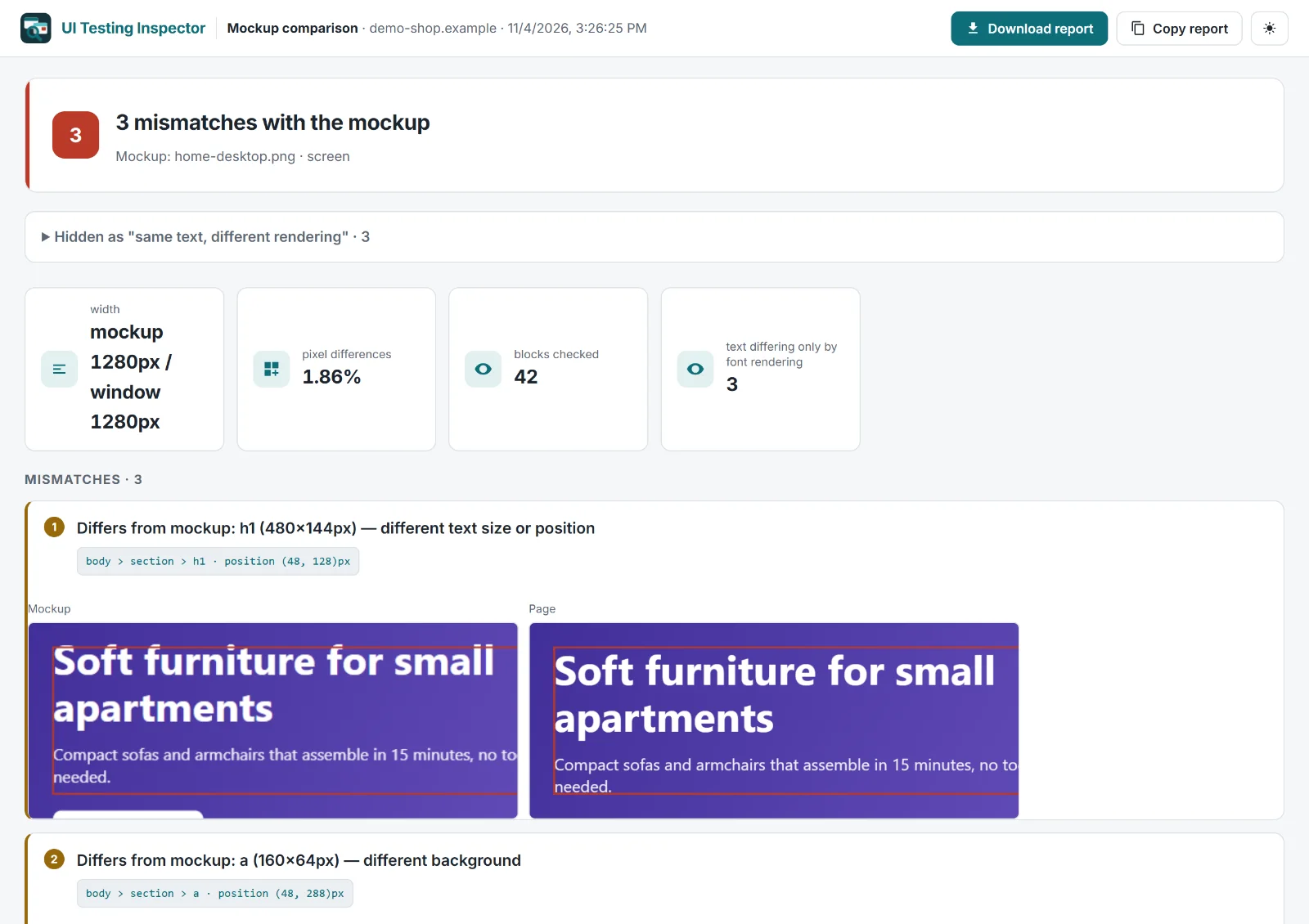
You get a list of mismatches with cropped previews for shifted text, font size, text or background color and missing text. Check the first screen or the full page, and the side panel stays open while you fix the CSS.

How to check a live page against a Figma mockup for a pixel perfect build

Pixel perfect mockup comparison report listing three mismatches between the design mockup and the page

Responsive testing at any width with WCAG 2.2 checks

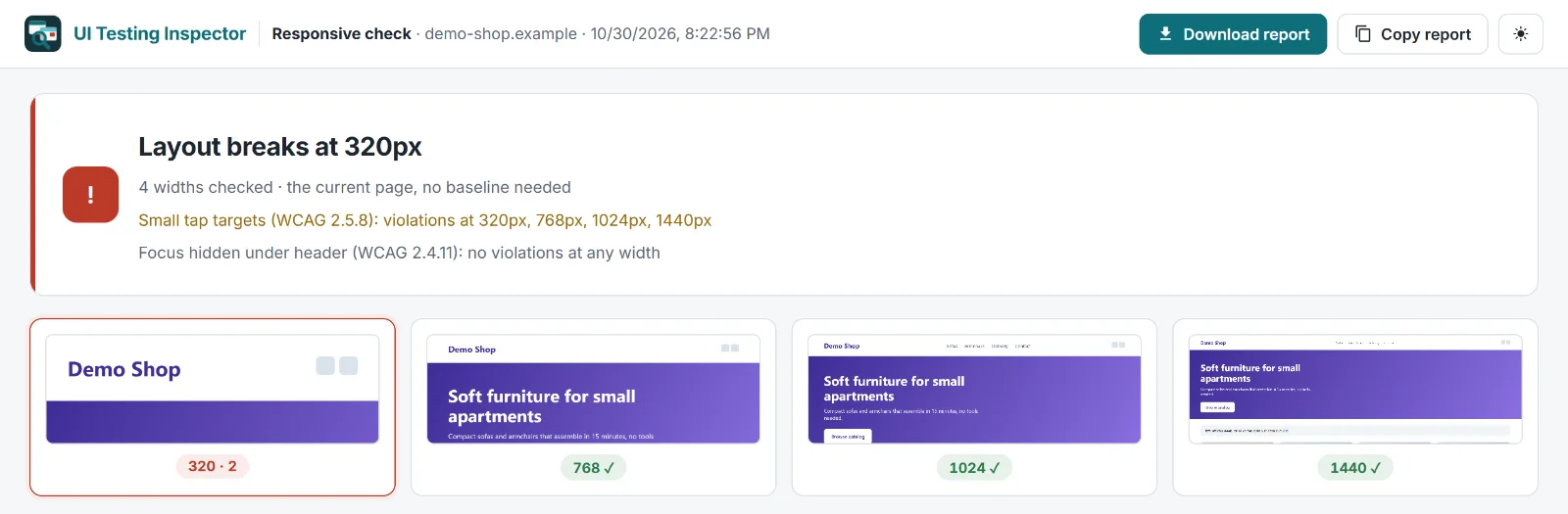
Run the audit at 320, 768, 1024 and 1440 px or at custom widths. You see horizontal scroll and the element that causes it, content that overflows its container, items that drop out of their row onto a new line, clipped text, broken images and images without alt text.

Turn on optional WCAG 2.2 checks for target size (2.5.8), focus not obscured by a sticky header (2.4.11) and text spacing (1.4.12), plus a pseudo-localization test with 35% longer text. No baseline needed.

Responsive testing at 320 px and WCAG 2.2 checks without a device lab

Responsive testing report showing the layout breaking at 320 px and WCAG 2.5.8 target size issues

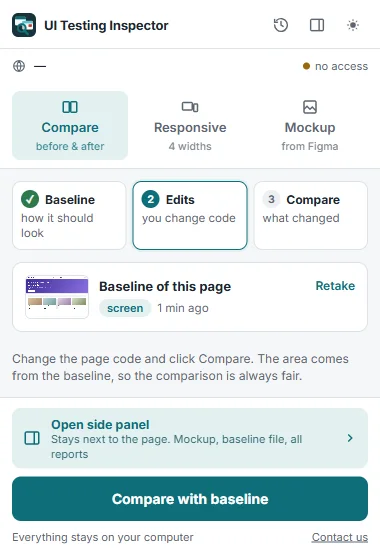
Popup for quick checks, side panel for everything

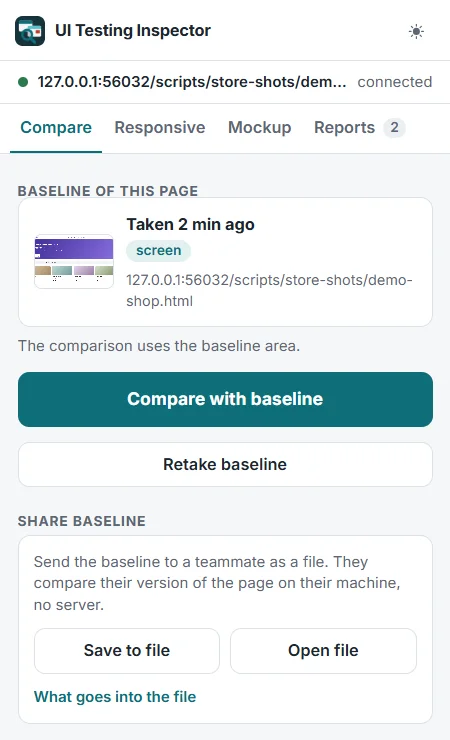
The popup gets you from baseline to report in two clicks. The side panel stays open next to the page with Compare, Responsive, Mockup and Reports tabs. The mockup check and the baseline file live there, and your last 10 reports are saved.

Export a report as a single file that opens without the extension, or save a baseline as a file and send it to a teammate. The report tells you when a baseline was taken with a different screen scale, window width, system or fonts.

Extension popup with Compare, Responsive and Mockup tabs and the Compare with baseline button
Side panel with Compare, Responsive, Mockup and Reports tabs, the page baseline and the Compare with baseline button

Everything stays on your computer

The extension needs no server, account or subscription and sends your data nowhere. Screenshots, baselines and reports stay in your browser. It does nothing on a page until you click its icon.

Visual regression testing tools compared

Different tools solve different parts of visual testing. Here is where an extension fits and where you are better off with something else.

UI Testing InspectorScreenshot tests in code (Playwright, BackstopJS)Cloud visual testing services (Percy, Chromatic)Overlay extensions (PerfectPixel)
SetupInstall the extensionWrite tests and run them locally or in CIAccount, SDK and CI integrationInstall the extension
Where screenshots goStay in your browserYour machine or CIUploaded to the serviceStay in your browser
Dynamic contentMasked automaticallyYou mask elements by hand in the testDepends on the serviceYou compare by eye
Mockup comparisonOverlay, Slider, Toggle, Differences only and a list of mismatchesNoDepends on the serviceSemi-transparent overlay, checked by eye
Best forQuick checks before a commit, after a deploy or plugin update, reports for clientsAutomated regression on every commitLarge teams reviewing many pages per releaseManual pixel checks of a single screen

What's new in 1.2.0

Questions and answers

What is UI Testing Inspector?

UI Testing Inspector is a free Chrome extension for visual regression testing, pixel perfect mockup comparison and responsive testing of websites. It compares a page with a saved baseline or a design mockup, audits the layout at 320, 768, 1024 and 1440 px and shows a report with findings outlined and numbered on the screenshot. It is made by Ana Do, works in Chrome 132 or later, needs no account and keeps all data in your browser. The current version is 1.2.0.

How do I compare a web page before and after changes?

Open the page, click the extension icon and click Take baseline. After you change the page, click Compare with baseline. The report opens in a new tab and lists only what changed since the baseline, with carousels, timers, videos and ads masked.

Can I compare a live page with a Figma design?

Yes. Export the frame from Figma as PNG, JPG or WebP and drop it into the Mockup tab of the side panel, or copy it as PNG and paste it there with Ctrl+V. Switch between Overlay, Slider, Toggle and Differences only views. The report lists mismatches such as shifted text, a different text size, text or background color and missing text.

Can I do visual regression testing without CI, setup or writing tests?

Yes. Install the extension, take a baseline and compare. The extension takes both screenshots and runs the screenshot comparison for you, so there are no test scripts, no CI pipeline and no dependencies to install. If you later want checks on every commit, screenshot tests in CI are the better fit for that part.

How do I check if CSS changes broke my website?

Take a baseline of the page before you change the CSS, on localhost or on the live site. After the change, click Compare with baseline. The report shows what moved, disappeared or changed size. Then run the responsive check to see how the change behaves at 320, 768, 1024 and 1440 px.

Can I run visual regression tests on localhost?

Yes. It works on localhost, on staging behind a password and on live sites, because it captures what your browser already shows. Take a baseline on localhost, change the CSS and compare before you deploy. Chrome's own pages and the Chrome Web Store cannot be captured.

Can it find overlapping elements and clipped text automatically?

Yes. In Compare mode new overlaps are flagged as Broken layout, and clipped text and elements that overflow their container appear under Shifts and sizes. The responsive audit finds the same problems at each width, plus horizontal scroll and the element that causes it.

How does it avoid false positives from animations, carousels and ads?

When you take a baseline, the extension reads the page twice 1.5 seconds apart and masks areas that change on their own, such as carousels, timers, videos and ads. CSS animations are paused during capture. Content pushed down by an inserted block is matched with the shift, so you get one finding instead of a hundred. Usually both snapshots come from the same browser, and the report warns you if the screen scale, window width, operating system or fonts differ.

Which screen widths does the responsive check cover?

By default it checks 320, 768, 1024 and 1440 px, and you can choose your own widths. It reports horizontal scroll and the element that causes it, overflowing blocks, items that drop out of their row onto a new line, clipped text, broken images and images without alt text.

Can I test 320 px when a Chrome window cannot get that narrow?

Yes. Chrome windows cannot get narrower than about 500 px, so narrow widths are reached with tab zoom, the same method W3C uses to test Reflow. You see the browser's real layout at that CSS width, and the report notes when zoom was used.

Which WCAG 2.2 criteria does it check?

It checks target size (2.5.8), focus not obscured by a sticky header (2.4.11) and text spacing (1.4.12). An optional pseudo-localization test makes all text 35% longer to show what breaks after translation. It is not a full accessibility audit.

Where is my data stored?

Everything is stored and processed in your browser. The extension has no server and no account and sends your data nowhere, so screenshots, baselines and reports stay on your computer. It does nothing on a page until you click its icon. Your last 10 reports are kept so you can reopen them.

Is it free?

Yes. The extension is free, needs no account or subscription and works in Google Chrome 132 or later.

Do I need Playwright to test UI changes?

No. The extension is enough for checks you run by hand, such as before a commit, after a deploy or CMS update, or when you need to send a client a clear report. If you need automated checks on every commit, Playwright screenshot tests in CI are the right tool.
Coming soon

UI Testing Inspector Studio

Checks your whole site on its own, on a schedule. For people who look after several sites and would rather not hear about breakage from clients.

The whole site, automatically

Studio reads your sitemap and checks every page on a schedule or right after a plugin, theme or deploy update.

No noise

Studio aims to ignore ads, cookie banners, sliders, animations and font rendering. The report shows what actually broke.

Review in a minute

Similar changes are grouped so you can accept them in one go. If a check fails to run, you see it right away, not a week later.

Studio will also include client reports with your logo and runs from CI.

Want Studio for your sites? Answer three questions.

The extension stays free forever and keeps running only in your browser. Studio is a separate service that runs in the cloud.

No email, no sign-up. We only receive your answers to these three questions.

Tell us what you think

A couple of lines from you decides what ships in the next version.

Rate the extension
Your feedback (rating and text) is emailed to the extension team. We collect nothing else.